April , 2014
If you are composing your research papers using Google Docs then EasyBib add-on will definitely help you with one of the most tedious parts of writing which is that of creating bibliographies.
EasyBib makes it way easier for you to generate bibliography entries in different styles: MLA, APA, Chicago. The process is very simply and easy to use. First install EasyBib in your Drive. Once it is active you just type in or paste the URL or title into EasyBib and it will automatically generate a bibliography entry for you in the style you choose. Watch the video below to see EasyBib in action.
Follow us on : Twitter, Facebook , Google plus, Pinterest .
Sabtu, 05 April 2014
Jumat, 04 April 2014
A Handy Chart Featuring 8 Ways to Do Formative Assessment
April 5, 2014
As a follow up to the materials I have already posted on formative assessment, I am introducing you today this wonderful chat that I learned about through Bianca. The chart features 8 strategies teachers can use to conduct a formative assessment. By definition, formative assessment is assessment for learning (summative assessment is assessment of learning ) which usually takes place simultaneously with learning. The aim of formative assessment is to students understanding and plan subsequent instruction.
In the chart below, you will get to discover 8 ways you can check for students comprehension, have a look and share with us what you think of it.

As a follow up to the materials I have already posted on formative assessment, I am introducing you today this wonderful chat that I learned about through Bianca. The chart features 8 strategies teachers can use to conduct a formative assessment. By definition, formative assessment is assessment for learning (summative assessment is assessment of learning ) which usually takes place simultaneously with learning. The aim of formative assessment is to students understanding and plan subsequent instruction.
In the chart below, you will get to discover 8 ways you can check for students comprehension, have a look and share with us what you think of it.
Follow us on : Twitter, Facebook , Google plus, Pinterest .
Grab These 4 Educational iPad Apps- They Are Now Free
April , 2014
Looking for some good deals on educational iPad apps, the list below features 4 interesting iPad apps that have recently gone free. Apps Gone Free is a wonderful app that provides daily news on apps that became gratis. I have gone through the collections they featured for today and grabbed you the titles below.
The offers below are time limited, if you like any of the apps grab it before it goes back to its pro version.
1- Slide X Pro ( was $ 2,99 )
Slide X is a simple yet powerful way to create truly unique video-stories from your favorite pictures, it has beautiful organic transitions, stunning filter effects, soundtracks and much more.
2- Van Gough: Painted with Words ( was $ 0,99 )
This is an app that introduces students to an interactive illustration of Vincent's life, especially the ten years he devoted to art. From these stories and artworks, students will get to rediscover Van Gogh, he is not any more a "crazy" artist, but a poet yearning for life, and love.
3- Air Music ( was $ 2.99)
Access and stream your iPhone, iPad or iPod touch Music Library directly over WiFi from an Xbox, a PS3 or any compatible DLNA device. No Wires or special hardware needed! It can even stream to a PC running Windows Media Player.
4- Animal Puzzles for Kids ( was $2.99 )
This is a good app to teach kids about the different names of animals through the use of puzzle games.The user interface is designed for kids of any age to enjoy! Joey provides positive feedback as each puzzle is completed! There's no wrong way to play!
Follow us on : Twitter, Facebook , Google plus, Pinterest .
Looking for some good deals on educational iPad apps, the list below features 4 interesting iPad apps that have recently gone free. Apps Gone Free is a wonderful app that provides daily news on apps that became gratis. I have gone through the collections they featured for today and grabbed you the titles below.
The offers below are time limited, if you like any of the apps grab it before it goes back to its pro version.
1- Slide X Pro ( was $ 2,99 )
Slide X is a simple yet powerful way to create truly unique video-stories from your favorite pictures, it has beautiful organic transitions, stunning filter effects, soundtracks and much more.
2- Van Gough: Painted with Words ( was $ 0,99 )
This is an app that introduces students to an interactive illustration of Vincent's life, especially the ten years he devoted to art. From these stories and artworks, students will get to rediscover Van Gogh, he is not any more a "crazy" artist, but a poet yearning for life, and love.
3- Air Music ( was $ 2.99)
Access and stream your iPhone, iPad or iPod touch Music Library directly over WiFi from an Xbox, a PS3 or any compatible DLNA device. No Wires or special hardware needed! It can even stream to a PC running Windows Media Player.
4- Animal Puzzles for Kids ( was $2.99 )
This is a good app to teach kids about the different names of animals through the use of puzzle games.The user interface is designed for kids of any age to enjoy! Joey provides positive feedback as each puzzle is completed! There's no wrong way to play!
Follow us on : Twitter, Facebook , Google plus, Pinterest .
Two Useful iPad Apps to Create Classroom Posters
April 5, 2014
In today's post I am sharing with you two awesome iPad apps to use with your kids and students to create posters.The process is very easy and kids will definitely enjoy them. The apps provide a wide variety of pre-made styles and templates to choose from and any poster created via these apps can be shared through social media websites like Twitter and Facebook, emailed, or printed in different formats. Have a look and share with your colleagues
1- Phoster
This is a user-friendly application to create stylish posters. With stylish templates which are already within the application, you will be able to create posters without great effort. When you get the job done of first step making posters, you can utilize various effects and decorates to complete the chic posters your own.
2- Wanted
Wanted allows kids to create gorgeous wanted posters to share with friends for fun. Here is how it works: Pick up one of the 7 included templates, take a photo or get one from your library, put in some funny captions and you have a gorgeous new wanted poster to print and share with your friends for fun! Includes 3 western, 2 fantasy, and 2 sci-fi templates.
In today's post I am sharing with you two awesome iPad apps to use with your kids and students to create posters.The process is very easy and kids will definitely enjoy them. The apps provide a wide variety of pre-made styles and templates to choose from and any poster created via these apps can be shared through social media websites like Twitter and Facebook, emailed, or printed in different formats. Have a look and share with your colleagues
1- Phoster
This is a user-friendly application to create stylish posters. With stylish templates which are already within the application, you will be able to create posters without great effort. When you get the job done of first step making posters, you can utilize various effects and decorates to complete the chic posters your own.
2- Wanted
Wanted allows kids to create gorgeous wanted posters to share with friends for fun. Here is how it works: Pick up one of the 7 included templates, take a photo or get one from your library, put in some funny captions and you have a gorgeous new wanted poster to print and share with your friends for fun! Includes 3 western, 2 fantasy, and 2 sci-fi templates.
Follow us on : Twitter, Facebook , Google plus, Pinterest .
Kamis, 03 April 2014
Thousands of Free High Resolution Maps for Teachers to Use and Download
April 4, 2014
New York Public Library has recently announced the release of more than 20.000 cartographic works and maps as high resolution downloads. NYPL is distributing these maps under a Creative Commons CC0 1.0 Universal Public Domain Dedication. The maps can be viewed through the New York Public Library’s Digital Collections page, and downloaded (!), through the Map Warper.
Follow us on : Twitter, Facebook , Google plus, Pinterest .
New York Public Library has recently announced the release of more than 20.000 cartographic works and maps as high resolution downloads. NYPL is distributing these maps under a Creative Commons CC0 1.0 Universal Public Domain Dedication. The maps can be viewed through the New York Public Library’s Digital Collections page, and downloaded (!), through the Map Warper.
Through these projects, we’ve built up a great collection of: 1,100 maps of the Mid-Atlantic United States and cities from the 16th to 19th centuries, mostly drawn from the Lawrence H. Slaughter Collection; a detailed collection of more than 700topographic maps of the Austro-Hungarian empire created between 1877 and 1914; a collection of 2,800 maps from state, county and city atlases (mostly New York and New Jersey); a huge collection of more than10,300 maps from property, zoning, topographic, but mostly fire insurance atlases of New York City dating from 1852 to 1922; and an incredibly diverse collection of more than 1,000 maps of New York City, its boroughs and neighborhoods, dating from 1660 to 1922, which detail transportation, vice, real estate development, urban renewal, industrial development and pollution, political geography among many, many other things.
Follow us on : Twitter, Facebook , Google plus, Pinterest .
Wonderful Visual Featuring The Three Versions of Bloom's Taxonomy
April 4, 2014
I have been sharing several visuals on Bloom's Taxonomy over the last couple of years but I never came across a graphic that captures the essence of the three versions of Bloom's taxonomy as the one below. Actually, Bloom's taxonomy comes only into two versions, the original which was created by a committee of educators chaired by Benjamin Bloom sometime in the 1950s of last century. During the 1990s another group of educators and cognitive psychologists led by Lorin Anderson ( a former student of Bloom) updated the original version to make it convenient with the learning needs of the 21st century. I first heard about digital Bloom's taxonomy from the works of Andrew Churches and since then several other scholars have written about it. For more resources on Bloom's Taxonomy, please visit this page.
Source of this graphic: http://mnpsbloom.weebly.com/
I have been sharing several visuals on Bloom's Taxonomy over the last couple of years but I never came across a graphic that captures the essence of the three versions of Bloom's taxonomy as the one below. Actually, Bloom's taxonomy comes only into two versions, the original which was created by a committee of educators chaired by Benjamin Bloom sometime in the 1950s of last century. During the 1990s another group of educators and cognitive psychologists led by Lorin Anderson ( a former student of Bloom) updated the original version to make it convenient with the learning needs of the 21st century. I first heard about digital Bloom's taxonomy from the works of Andrew Churches and since then several other scholars have written about it. For more resources on Bloom's Taxonomy, please visit this page.
Source of this graphic: http://mnpsbloom.weebly.com/
Follow us on : Twitter, Facebook , Google plus, Pinterest .
Teachers' Visual Guide to Using Google Calendar
April , 2014
Google Calendar is one of the best free web tools I have been using for few years now. As a teacher, you can use Google Calendar for a wide variety of purposes. You can for instance create events and share them with your students and parents; you can use it to share important dates and information with students. You can also create reminders about assignments and share them with your class or , and if you have a classroom blog or website, you will also be able to embed your calendar in it.
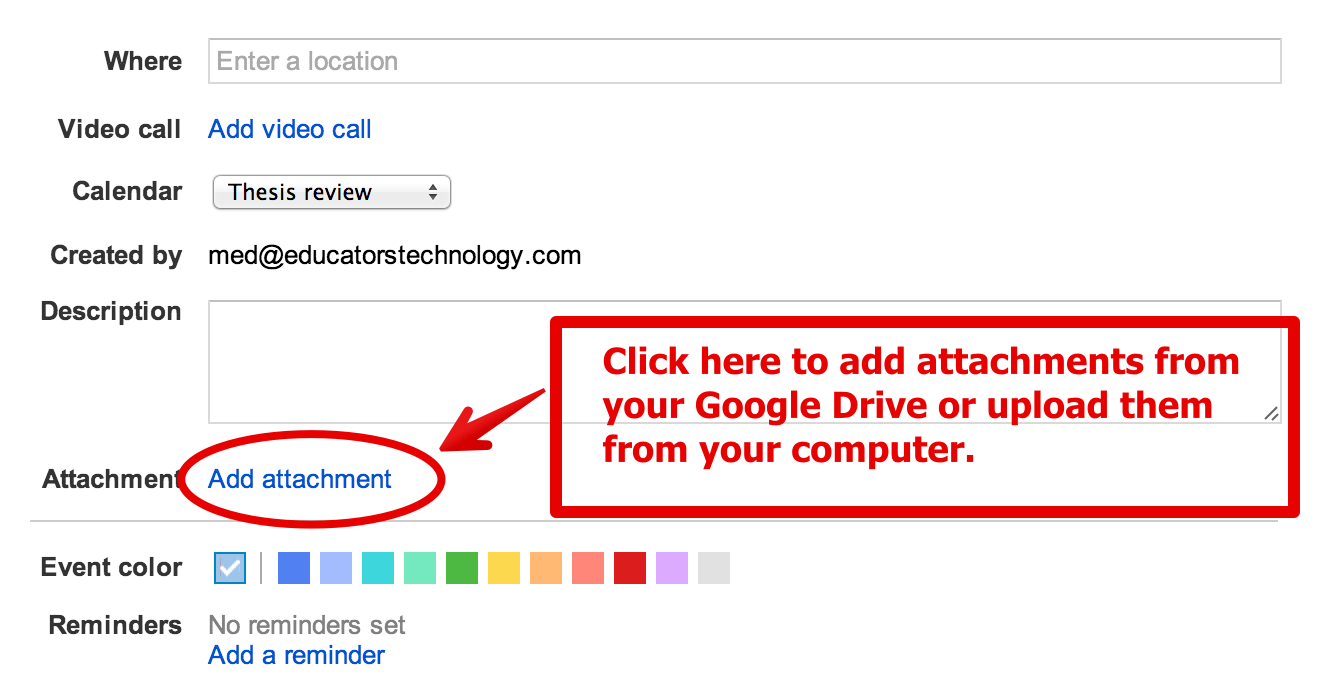
Below is a visual guide I created to walk you through the different steps you can follow to create , share and publish your calendar.
1- First head over to Google Calendar and log in if you are not already logged in. If you have a Google account then you have Google calendar by default . Now that you are logged in , click on the drop down menu and select " create a new calendar".
2- Give a name to your calendar and provide a short description for it then select your time zone.
3- Add attachments to your calendar

4- Add reminders to your calendar
5- Create an event in your calendar
6- Edit your event and add more information to it.
7-Click on 'Share this calendar with others' or type in their email addresses then click on 'create calendar'.
8- Embed your calendar
9- Customize the size and colour of your calendar and copy the HTML code to paste on your blog or website.
Follow us on : Twitter, Facebook , Google plus, Pinterest .
Google Calendar is one of the best free web tools I have been using for few years now. As a teacher, you can use Google Calendar for a wide variety of purposes. You can for instance create events and share them with your students and parents; you can use it to share important dates and information with students. You can also create reminders about assignments and share them with your class or , and if you have a classroom blog or website, you will also be able to embed your calendar in it.
Below is a visual guide I created to walk you through the different steps you can follow to create , share and publish your calendar.
1- First head over to Google Calendar and log in if you are not already logged in. If you have a Google account then you have Google calendar by default . Now that you are logged in , click on the drop down menu and select " create a new calendar".
2- Give a name to your calendar and provide a short description for it then select your time zone.
3- Add attachments to your calendar

4- Add reminders to your calendar
5- Create an event in your calendar
6- Edit your event and add more information to it.
7-Click on 'Share this calendar with others' or type in their email addresses then click on 'create calendar'.
8- Embed your calendar
9- Customize the size and colour of your calendar and copy the HTML code to paste on your blog or website.
Follow us on : Twitter, Facebook , Google plus, Pinterest .
Langganan:
Postingan (Atom)